Client reports
Stop sending screenshots. Give your client a link to a live page with their numbers. They don't need an account, and they only see what you choose.
Available on: Pro, Team and Agency. Your own branding needs Agency. 1 minute
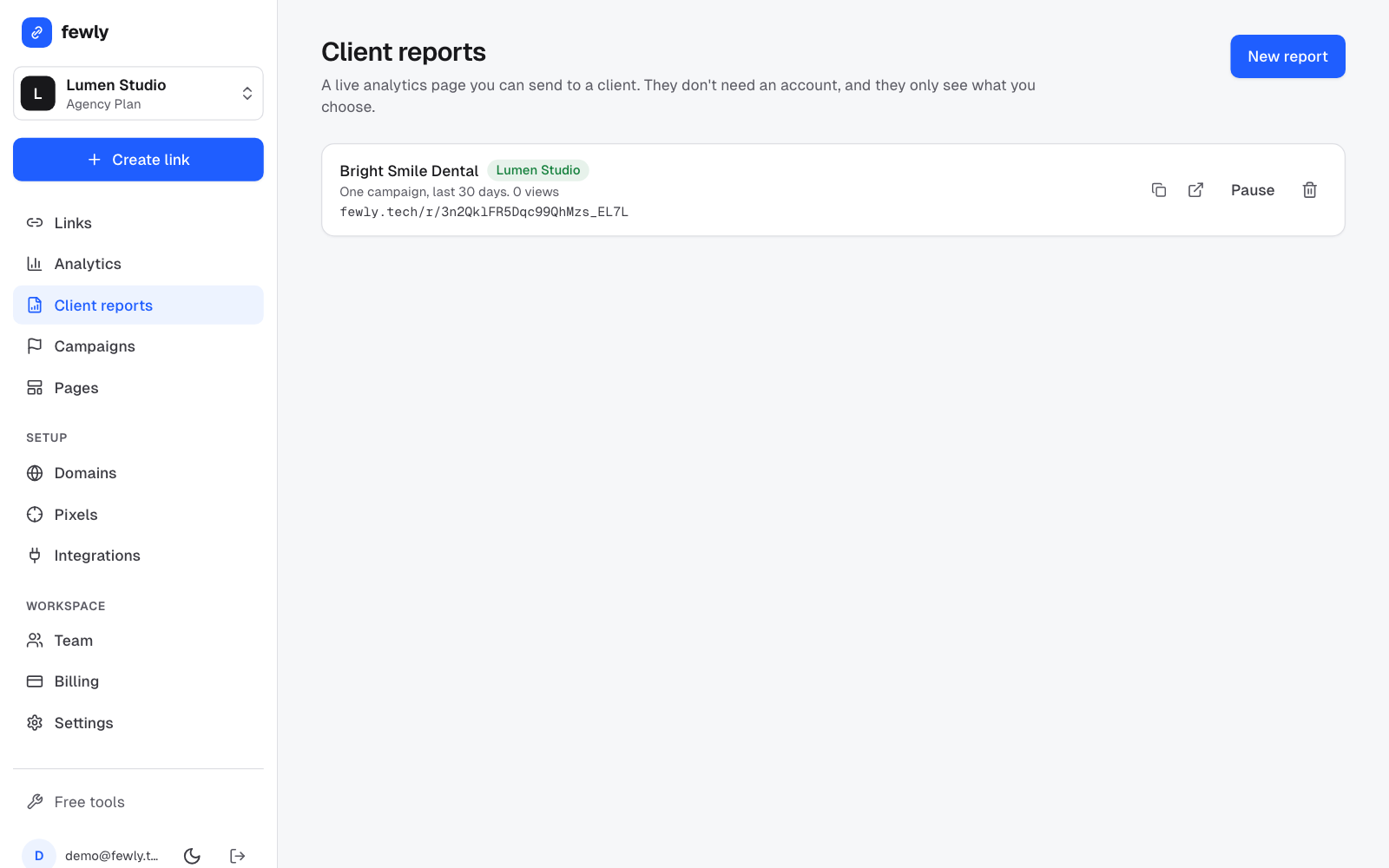
Open Client reports and press New report
Name it and choose what it covers
The client sees the name at the top. Under What it shows, pick one campaign, link or tag, or all links.
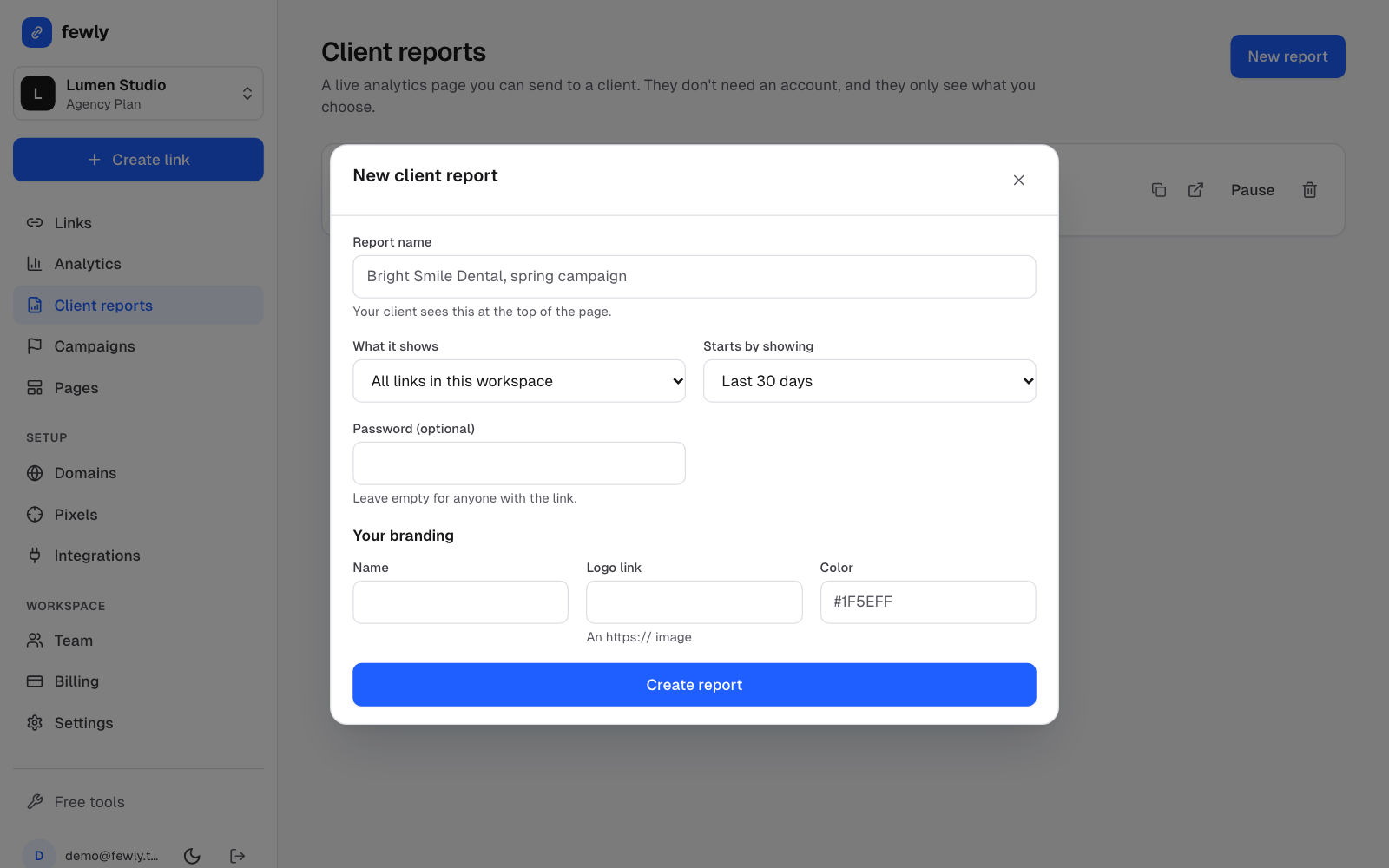
Add a password if you want one
Leave it empty and anyone with the link can see the report. Tell the client the password separately.On Agency, add your brand
Your name, logo link and color. The page then shows your brand, and fewly isn't mentioned anywhere on it.Press Create report, then copy the link
Send it however you like. The page updates itself, so you only ever send it once.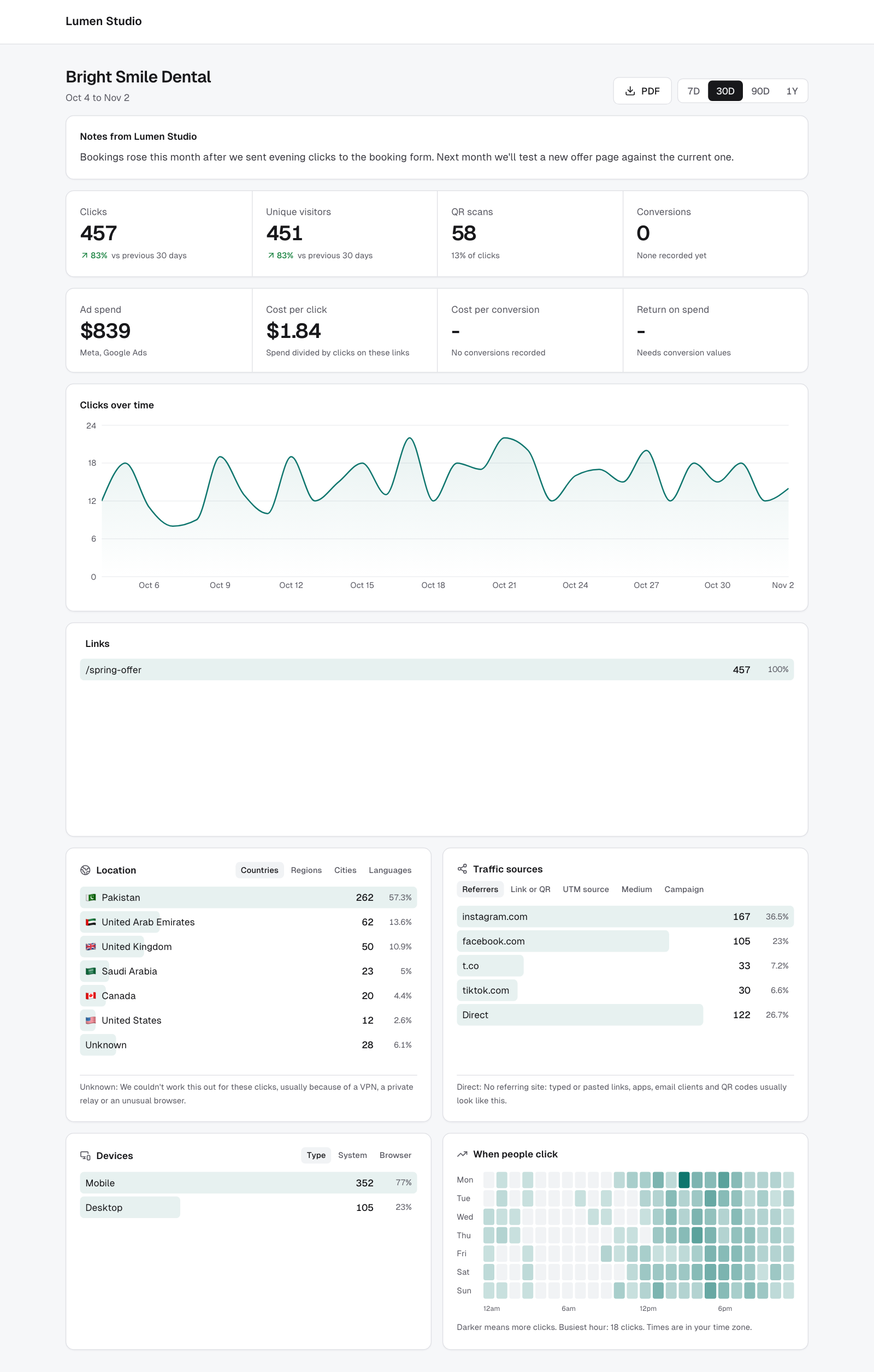
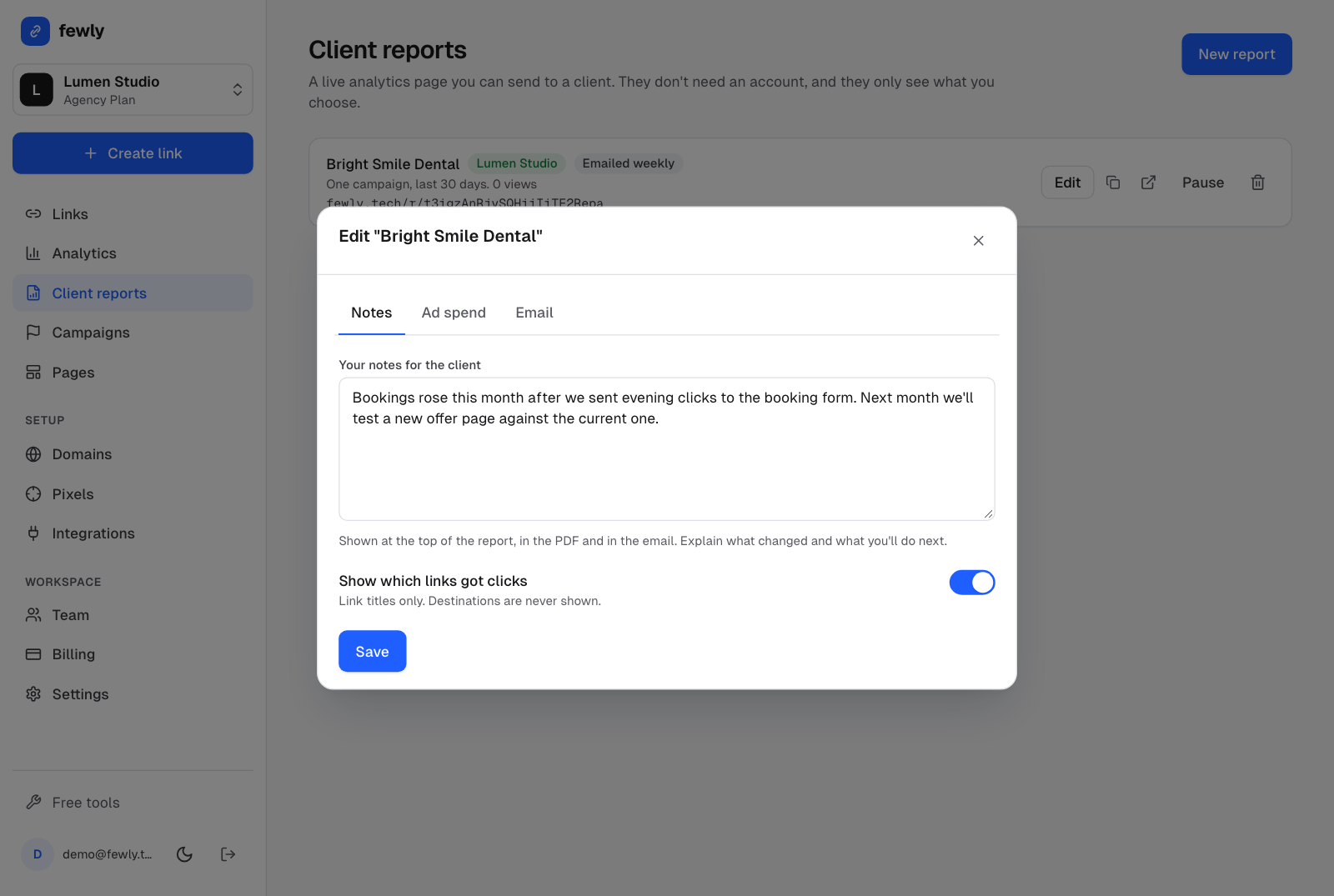
Add your own notes
Press Edit next to a report and use the Notes tab. Explain what changed and what you'll do next, in your own words. Notes show at the top of the report, in the PDF and in the email.
Show cost per lead and return on spend
Add what you spent on ads and the report shows cost per click, cost per conversion and return on spend, worked out from fewly's own clicks and conversions.
Export a daily report from your ad account
- Meta: Ads Manager, Reports, choose your campaigns, break down by Day, then Export as CSV.
- Google Ads: Campaigns, Segment, Time, Day, then Download as CSV.
Press Edit on the report, then open Ad spend
Choose where the spend came from and the currency.Press Choose CSV file
fewly reads the date and spend columns, and impressions and clicks if they're there. Uploading the same days again replaces them, so you can upload every week without double counting.
No export? Type one day at a time under Or type one day.
PDF and email
- PDF: your client can press PDF on the report to download it. On Agency it carries your name and color, not fewly's.
- Email: in Edit, Email, add up to 10 addresses and choose every week or every month. Each email has the headline numbers, a link to the live report and the PDF attached. On Agency it comes from your agency's name. Send now sends one straight away.
What your client can and can't see
- They can see: clicks, visitors, a chart, places, sources, devices, busy hours, conversions, your notes, ad spend and costs, and the titles of links that got clicks. They can change the date range and download a PDF.
- They can't see: your other clients, your other links, destinations, contact names or anything in your account.
Manage your reports
The list shows how many times each report has been opened, so you know whether the client looks at it. Pause switches a link off at once, Resume brings it back, and the bin deletes it for good.
If something isn't working
The client sees 'This report isn't available'
My logo doesn't show
https://. Open it in a private window to check it loads.Still stuck? Contact us and tell us what you tried.