Connect Slack or Discord
Get alerts in a channel your team already reads, and choose exactly which events send one. Discord works the same way; Microsoft Teams, Google Chat and Telegram use the manual steps.
Available on: Pro, Team and Agency 3 minutes
The quick way: pick a channel
In fewly, open Integrations and click Slack or Discord
Tick what you want to hear about. For example A new link is created on, and Every click off.Press Choose a Slack channel
Slack (or Discord) opens its own page. Pick the channel and press Allow, or Authorize in Discord.You're back in fewly
The connection is listed under Your connections, and a test message is already in the channel.
The manual way: paste a webhook URL
Use this when the button isn't shown, or for Teams, Google Chat and Telegram.
Open Slack's app page
Go to api.slack.com/apps, click Create New App, then From scratch. Name itfewlyand choose your workspace.Turn on Incoming Webhooks
Click it in the left menu and switch it on.Click Add New Webhook to Workspace
Pick a channel and press Allow. Copy the Webhook URL.In fewly, open Integrations and click Slack
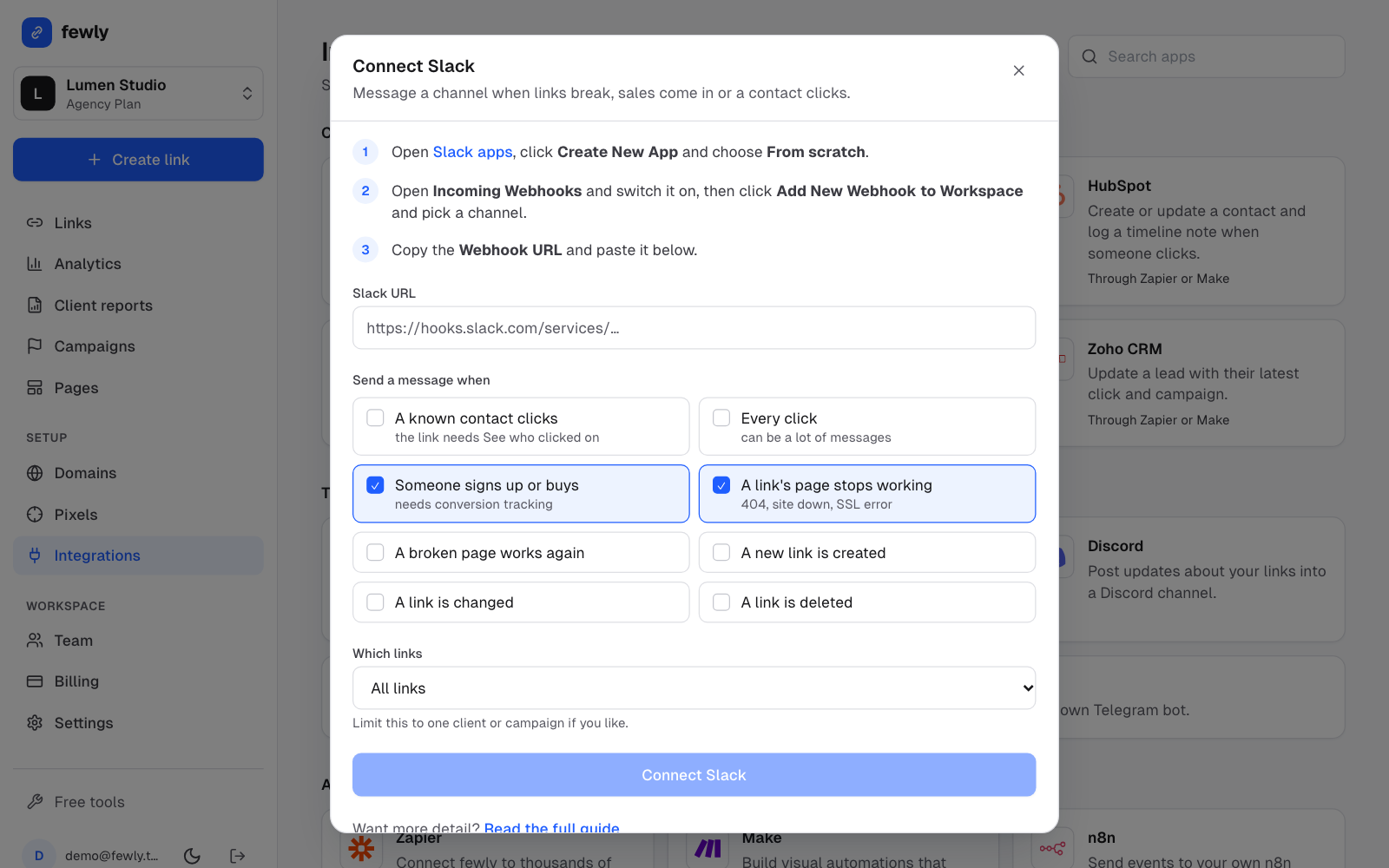
Paste the address, pick what to hear about and press Connect Slack
A test message should appear in your channel right away.
Change what gets sent later
Open Integrations and find the connection under Your connections
Each row says which events send a message.Press Edit
Tick or untick events, limit it to one campaign, rename it, or move it to another channel's address. Press Save changes.
Start with A link's page stops working and Someone signs up or buys. Avoid Every click in chat, because busy links fill a channel quickly.
If something isn't working
The Choose a channel button isn't there
One-click connect is switched on by whoever runs your fewly server. Until then, use the manual way above. It works the same.
No test message arrived
Check you copied the whole address, starting
https://hooks.slack.com/. Slack apps may need an admin's approval in some workspaces.Still stuck? Contact us and tell us what you tried.