Move your links from Bitly
Bring every link across with its address, title, tags, date and total clicks. Links on your own domain keep the exact same address, so printed QR codes keep working.
Available on: All plans. Links on your own domain need a plan with branded domains. 10 minutes, plus a DNS change
What moves, and what can't
- Links on your own domain, like
go.yourbrand.com/spring: they keep the same address. Once the domain points at fewly, every old link and QR code works through fewly. - Links on bit.ly: Bitly owns that domain, so nobody can move those addresses. fewly gives each one the same back-half on your fewly domain when it's free, and the old bit.ly link keeps working through Bitly for as long as your Bitly account exists.
- Also comes across: title, tags (plus a
from-bitlytag), the date it was made, archived links as paused, and total clicks if you choose. - Doesn't come across: Bitly's daily click history and its deep-link settings. Set up routing again in fewly if you used it.
Before you start
Add each of your custom domains under Domains. Don't change their DNS yet: your links keep running on Bitly until the import is done and checked.
Import with a Bitly token
Get a token from Bitly
In Bitly open Settings, then API (sometimes under Developer settings). Enter your Bitly password and press Generate token. Copy it.Open the importer
In fewly go to Links, Import, then Moving from Bitly?, or open the importer directly.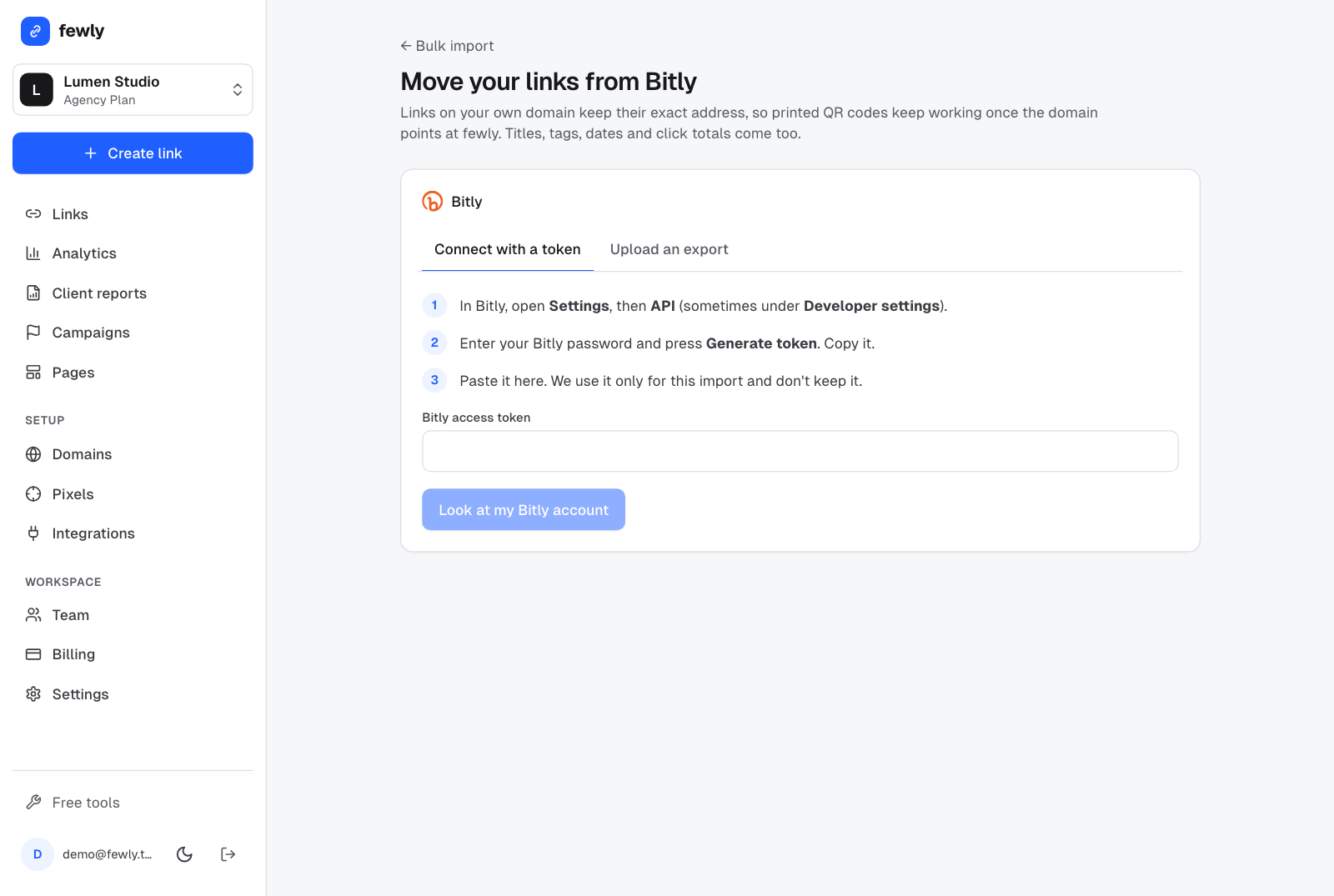
Paste the token and press Look at my Bitly account
You see your Bitly groups with how many links each has, and every domain with what will happen to its links.Choose the groups and press Move
Leave Bring each link's total clicks on unless your Bitly plan has a small API allowance. You can leave the page open and watch the count, or come back later.
We use the token only for the import and don't keep it. You can delete it in Bitly afterwards.
Import from a Bitly export instead
In Bitly, open Links and press Export
Bitly emails you a CSV file. Bitly only allows exports on its paid plans.In the importer, open Upload an export and choose the file
Switch your domain over
Check a few links
Open some moved links on your Links page and check their destinations.Change the domain's DNS
Open the domain under Domains and copy the records into your domain company's DNS settings, replacing Bitly's. See Use your own domain for the details.Scan an old QR code
Once fewly shows the domain as connected, scan a printed code with your phone. It should land on the right page.Then cancel Bitly
Keep Bitly until you've checked. Cancelling it doesn't affect links on your own domain once they point at fewly.
bit.ly links stop working if you close your Bitly account. If they're printed somewhere important, keep a free Bitly account so they carry on redirecting.
Run the import again any time. Links already moved are skipped, so it only picks up what's new.
If something isn't working
It says Bitly didn't accept the token
Make a new token in Bitly and paste the whole thing.
Some links were skipped because of a domain
That domain isn't in fewly yet. Add it under Domains and run the import again.
It stopped at 50 links
The Free plan makes 50 links a month. Upgrade, or import the rest next month.
Bitly says the API limit is reached
Turn off Bring each link's total clicks, which uses one Bitly request per link, or import a CSV export instead.
Still stuck? Contact us and tell us what you tried.